How to Sign In and Navigate the CropTrak Web Homepage
CropTrak Web is the browser version of our award-winning mobile app. It is optimized for the Google Chrome browser.
Signing Into CropTrak Web:
For most users, you will sign-in to CropTrak Web by going to this URL:
Some users will have specific domain addresses to sign-in to CropTrak Web which will be supplied to you by your administrator. So if you have been given a URL for CropTrak Web that is different from that above, be sure to use that URL instead because there may be updates specific to your setup.
Once at the proper sign-in screen for your version of CropTrak Web, enter your email address and password (also provided by your administrator), and click on "Login".
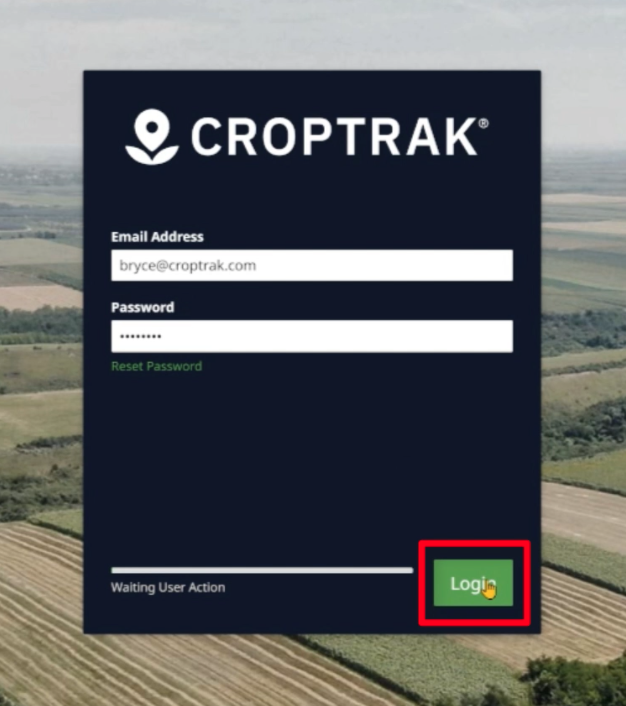
Some users may get a second sign-in screen asking for your Server and Database. If you do, pick the information provided by your administrator from the provided list and click Login again.
This will bring you to the CropTrak Web Homepage.
CropTrak Web Homepage
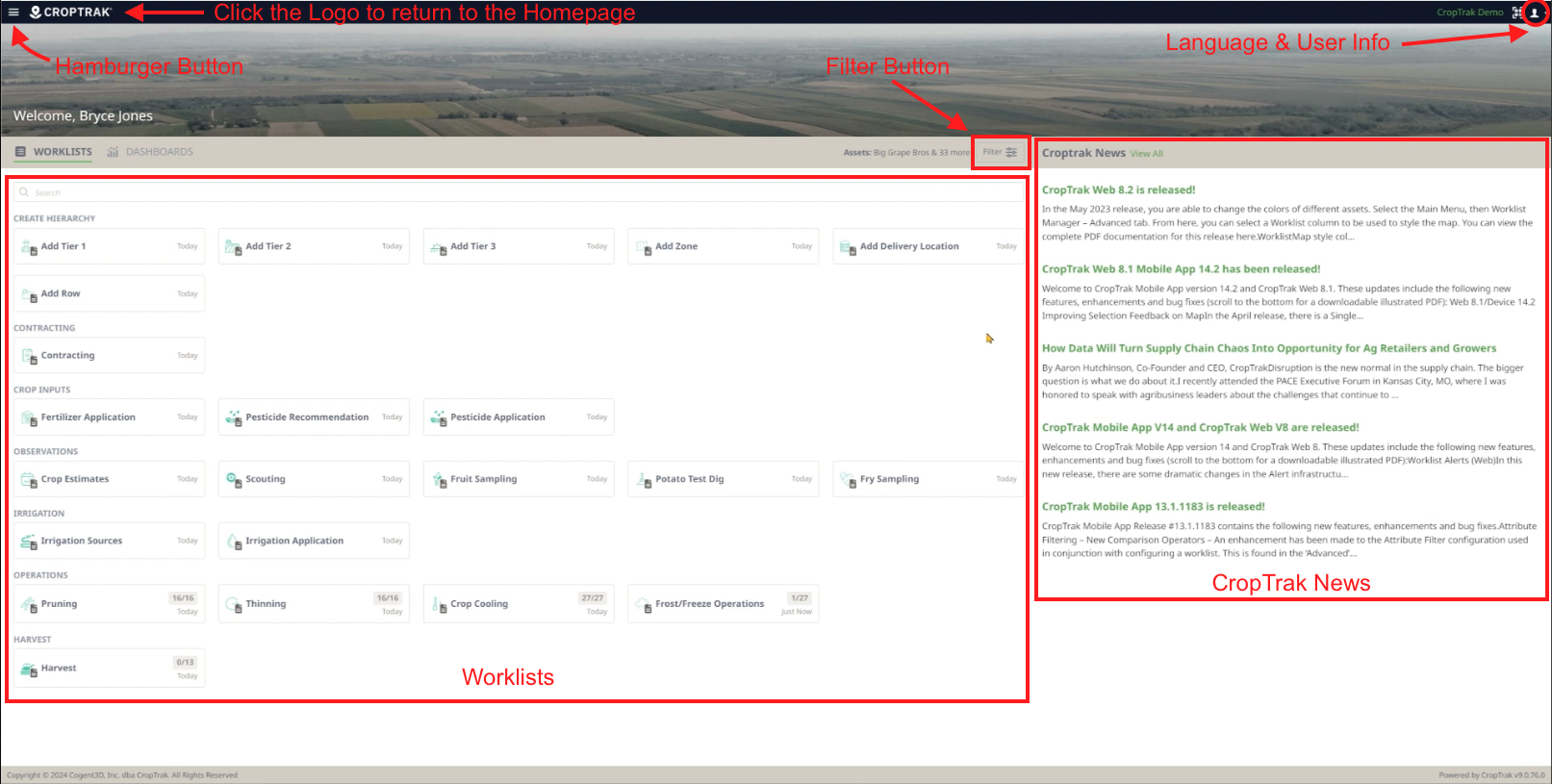
What you see when you sign-in to CropTrak Web will be based on your roles & permissions granted you by your Administrator. If your roles in CropTrak Web are based upon data input only, you may not see options that are used by other members of your organization.
WORKLISTS - tell you where there is work that needs to be done by the user in your organization, and is the biggest part of the CropTrak operation, and where most data entry takes place.
CROPTRAK NEWS - this is a feed of articles published by CropTrak including release notes.
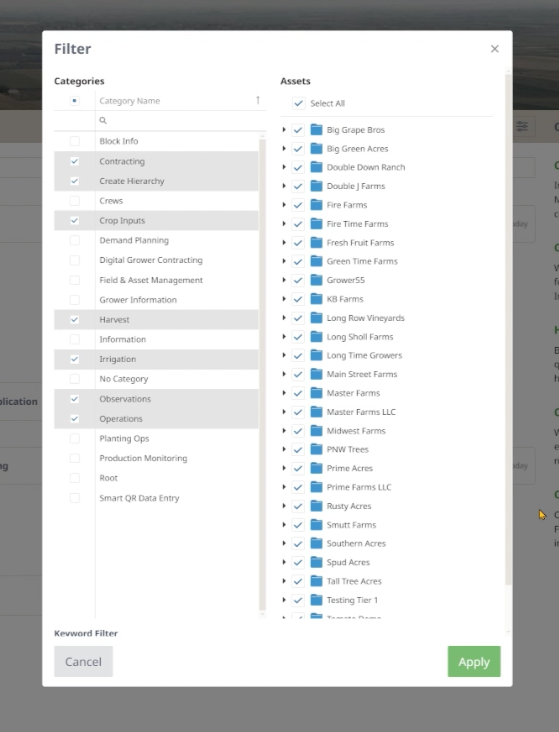
FILTER BUTTON - allows you to select the specific assets, or geographic location that you are working, as well as the category of Worklists that you want to see displayed.
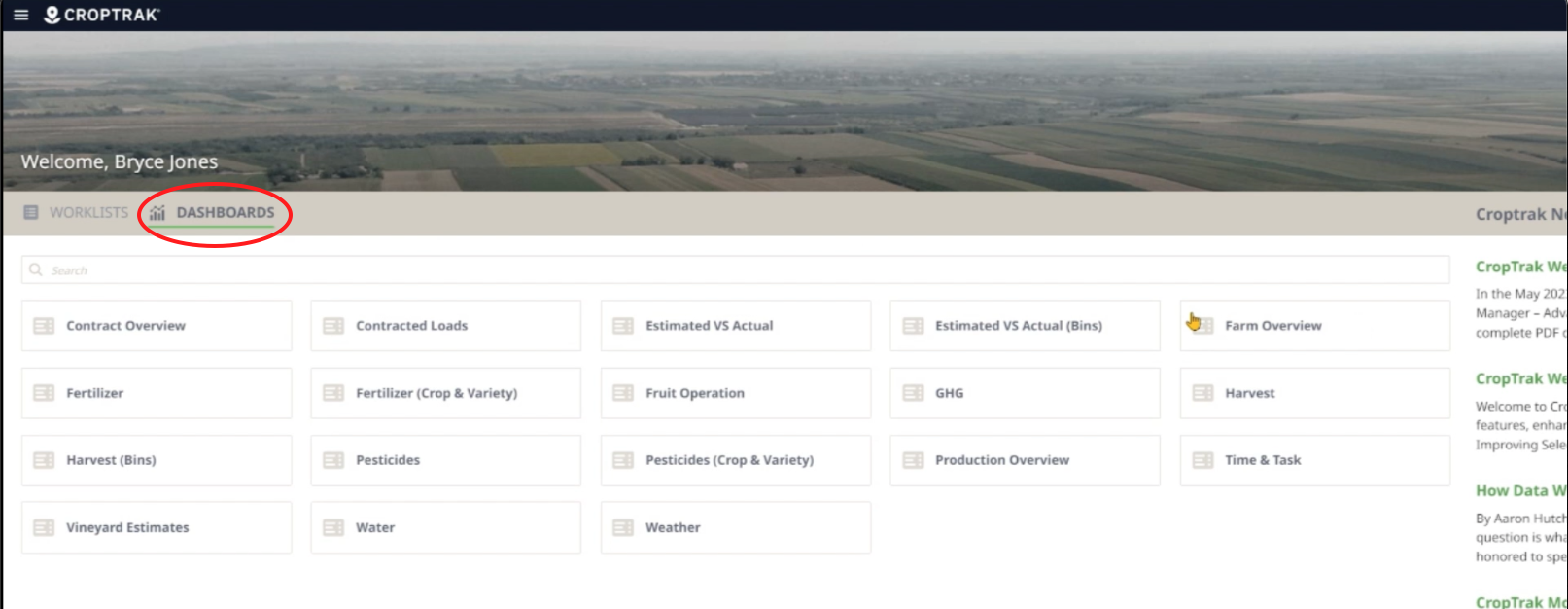
DASHBOARDS - also known as "custom reports" give you data analytics and feedback about the state of your operation. You can also pin a dashboard to the homepage as well.
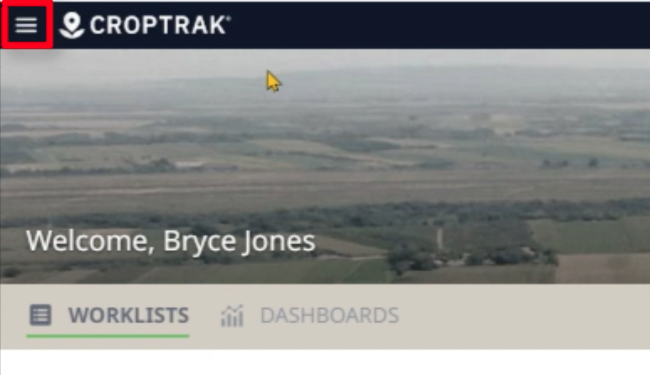
HAMBURGER BUTTON - The three horizontal lines in the upper left-hand corner of the page toggle the left-hand menu open and closed.
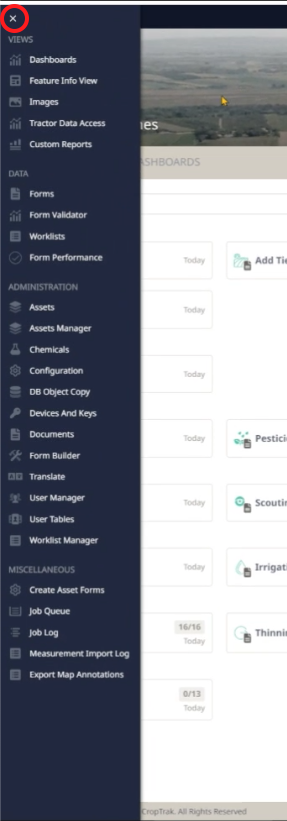
Again, what you see may look different from the video tutorial. What you see when you open this menu is directly related to your assigned roles from your Admin. Chances are you will see fewer options in the menu, and that they will mostly be related to data entry and asset control. To close the left-hand menu, click on the "X" at the top left hand of the menu box.
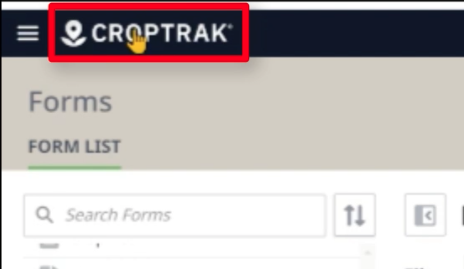
HOMESCREEN RETURN BUTTON - click on the CropTrak Logo in the upper left hand corner to return to the homepage from wherever you are in the app.
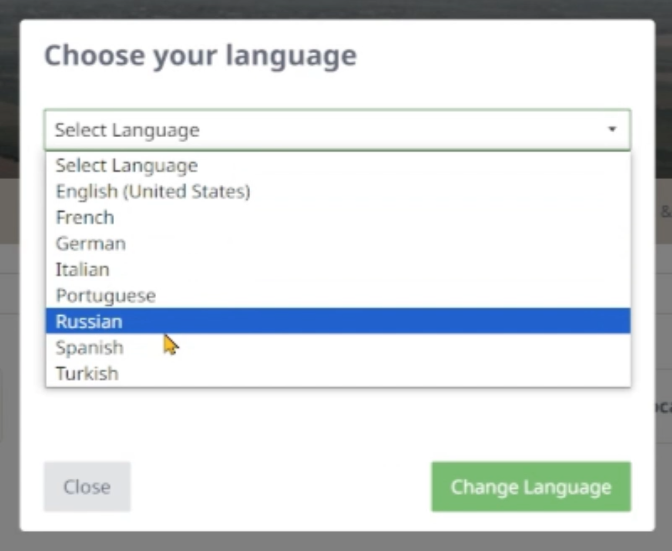
PERSONAL SETTINGS ICON - located in the upper right hand corner of the app screen, the "person" icon holds settings that you will need for your use of the app. The most common two options here are the Support option and the Languages option. The Support option takes you to our support site. The Languages option sets the language being used by the user. We currently support over 8 different languages for our clients.
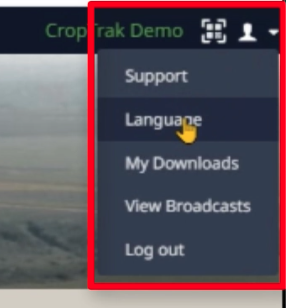
Clicking on the Languages option will open this screen where you make your selection:
Was this article helpful?
That’s Great!
Thank you for your feedback
Sorry! We couldn't be helpful
Thank you for your feedback
Feedback sent
We appreciate your effort and will try to fix the article